> For the complete documentation index, see [llms.txt](https://docs.is-messenger.com/ismessenger/llms.txt). Markdown versions of documentation pages are available by appending `.md` to page URLs; this page is available as [Markdown](https://docs.is-messenger.com/ismessenger/automate-conversations/how-to-collect-contacts-emails-and-phone-numbers.md).
# How to Collect Contacts’ Emails and Phone Numbers
{% hint style="success" %}
In this use case article, you’ll discover how to collect customers’ or leads’ email addresses or phone numbers for identification when conversations open.
{% endhint %}
Contacts’ email addresses and phone numbers are valuable information that can be used to identify an existing customer or lead for more context. With a better understanding of a customer or lead, agents can provide better assistance.
#### Benefits of Collecting Contacts’ Emails and Phone Numbers
Use the email addresses or phone numbers collected to:
* [merge Contacts](/ismessenger/modules/contacts.md) when a Contact messages you from a different Channel.
* be able to [sync Contacts](/ismessenger/support-use-cases.md) and Contact properties with another CRM.
#### Methods for Collecting Contacts’ Emails and Phone Numbers
Here are four methods that you can use to collect Contacts’ emails and phone numbers:
1. Automatically obtained from Channel's Metadata.
2. Ask for email or phone number using Workflows.
3. Use Pre-Chat Form on Website Chat Widget.
4. Identify logged-in Contacts via Website Chat Widget.
**Automatically obtained from Channel's Metadata**
**Use this method** when you are using channels that pass metadata containing Contact's email or phone number to IS-Messenger platform.
IS-Messenger platform automatically receives Contacts’ emails or phone numbers for the following channels:
* [WhatsApp](/ismessenger/messaging-channels/whatsapp.md)
* [SMS](/ismessenger/messaging-channels/sms.md)
* [Email](/ismessenger/messaging-channels/email.md)
For channels that do not provide Contacts’ emails or phone numbers to IS-Messenger platform, use the other methods to collect the information.
**Ask for email or phone number using Workflows**
**Use this method** when you expect Contacts to message you via instant messaging.
**Method Objectives**
* Select a Workflow Template and customize steps if needed
* Continue the Workflow when the question is skipped
**Select Workflow Template and customize steps if needed**
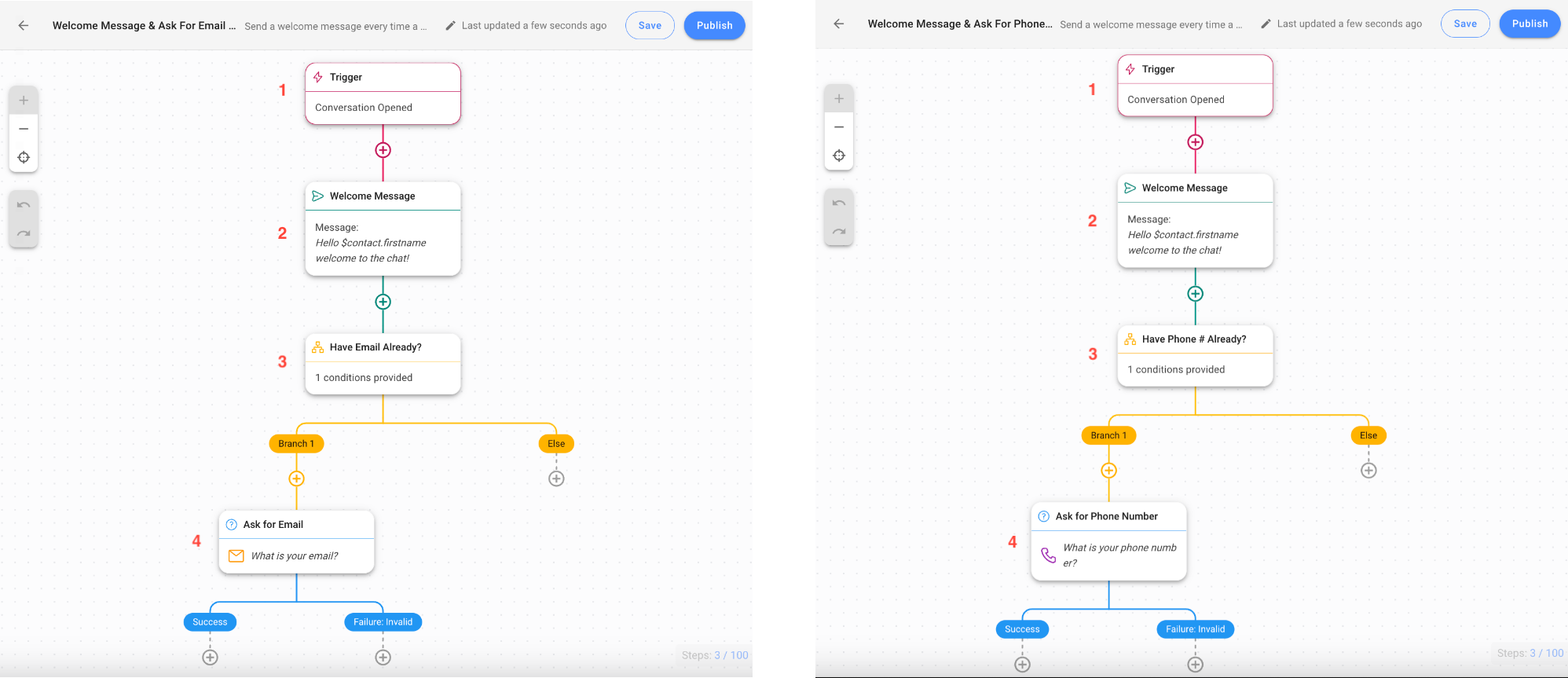
In the **Workflows** module, click **+ Add Workflow** and choose your template:
* To collect emails, click **Welcome Message & Ask For Email** > Click **Use Template**.
* To collect phone numbers, click **Welcome Message & Ask For Phone Number** > Click **Use Template**.
Customize the steps based on your business needs.
**1.** [**Trigger**](/ismessenger/modules/workflow.md): The Workflow starts when a conversation is opened by a Contact.
**2. Welcome Message**: [Sends a message](/ismessenger/modules/workflow.md) to greet your Contact.
**3. Have Email** / **Phone # already?**: This is a [Branch](/ismessenger/modules/workflow.md) step to check if the Contact Field already contains the email address or phone number.
| **Condition** | **Outcome** |
| ---------------------------------------------- | ------------------ |
| Contact’s email or phone number does not exist | Asks the question |
| Contact’s email or phone number exists | Skips the question |
**4. Ask for Email** or **Ask for Phone Number**: This [Ask a Question](/ismessenger/modules/workflow.md) step lets you send a message to the Contact asking for email or phone number if the Contact Field does not contain the email or phone number.
Consider continuing your Workflow with [Routing](/ismessenger/sales-use-cases/how-to-route-leads.md) or [Assignment](/ismessenger/sales-use-cases/how-to-route-leads.md).Once you have completed the setup, click **Save** and **Publish** to activate the Workflow.
**Use Pre-Chat Form on Website Chat Widget**
**Use this method** when you expect Contacts to message you via Website Chat Widget.
When Contacts message from the Website Chat Widget, you’ll need to get their names in addition to the email addresses or phone numbers.
{% hint style="warning" %}
**Must-have:** Firstly, add and install the IS-Messenger[ Chat Widget](/ismessenger/messaging-channels/website-chat-widget.md).
{% endhint %}
{% hint style="info" %}
Learn more about [Pre-Chat Forms here](/ismessenger/messaging-channels/website-chat-widget.md).
{% endhint %}
Here’s how to set up the Contact information you want to collect from the Pre-Chat Form:
1. Click **Settings** > Click **Channels** > Click **Website Chat Channel** > Click **Customize**.
2. Open the Pre-Chat toggle and enable Pre-Chat Form.
3. Add *First Name* and *Email Address* or *Phone Number* fields to the form, and then make the fields Mandatory for Contacts to fill them out.
**Identify logged-in Contacts via the Website Chat Widget**
**Use this method** when you expect Contacts to message you via Website Chat Widget from a logged-in area on website.
If Contacts are logged in, you can automatically get the names, email addresses, phone numbers and more.
Follow the instructions to add JavaScript code to your website [here](/ismessenger/messaging-channels/website-chat-widget.md).
---
# Agent Instructions
This documentation is published with GitBook. GitBook is the documentation platform designed so that both humans and AI agents can read, navigate, and reason over technical content effectively. Learn more at gitbook.com.
## Querying This Documentation
If you need additional information that is not directly available in this page, you can query the documentation dynamically by asking a question.
Perform an HTTP GET request on the current page URL with the `ask` query parameter:
```
GET https://docs.is-messenger.com/ismessenger/automate-conversations/how-to-collect-contacts-emails-and-phone-numbers.md?ask=
```
The question should be specific, self-contained, and written in natural language.
The response will contain a direct answer to the question and relevant excerpts and sources from the documentation.
Use this mechanism when the answer is not explicitly present in the current page, you need clarification or additional context, or you want to retrieve related documentation sections.